
Find a copied item
Mac running the supported version of macOS. UI labels below are in English.
History is the list of items Stash has captured. In the app, open it from the Clipboard tab.
Find and reuse a clip
Section titled “Find and reuse a clip”- Open Clipboard. Open Stash from the menu bar or press ⇧⌘V (the default). Select Clipboard to see recent copies.
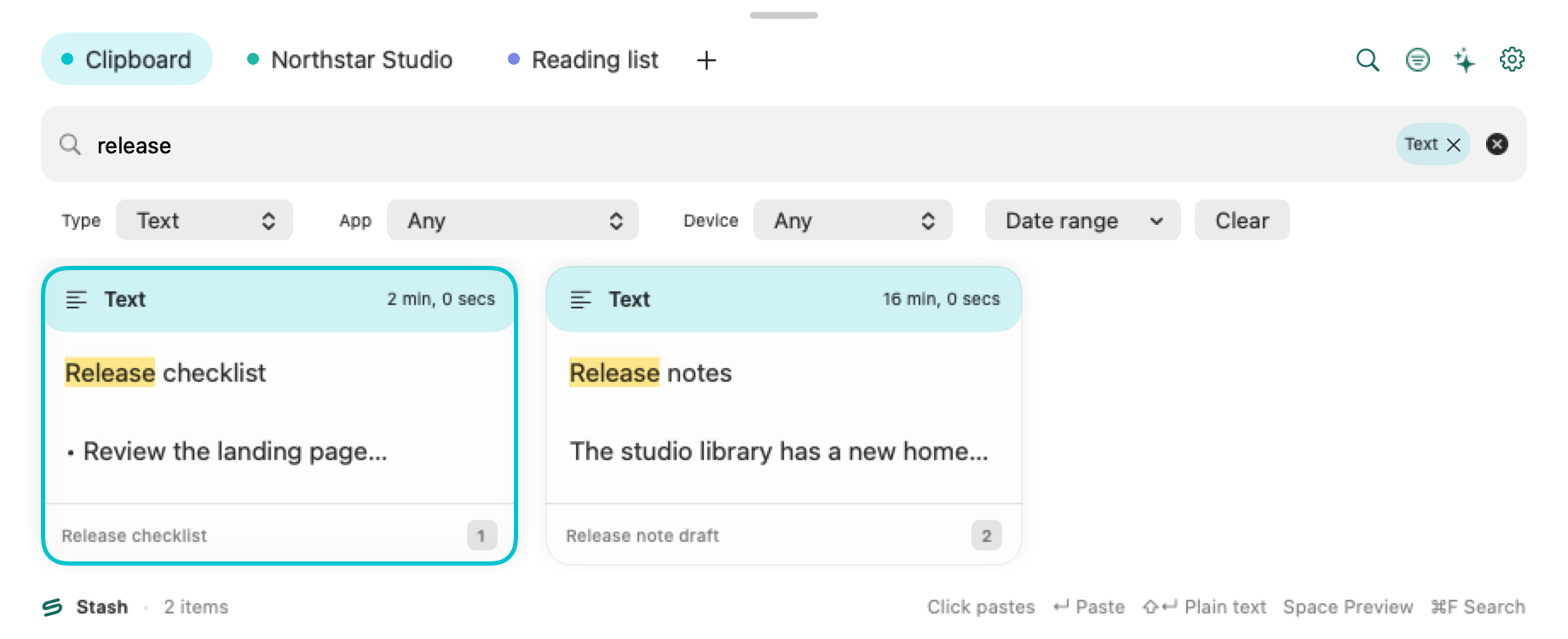
- Search and narrow the results. Press ⌘F or select the magnifying glass. Enter a word, such as
release. Stash searches the available text, titles and recognized text in images. Use Filters to reveal Type, App, Device and Date range. Use Clear to reset the filters. - Preview or paste. Select an item and press Space or choose Preview from its context menu. Press Return to paste, or ⇧Return for plain text.
If direct paste is unavailable
Section titled “If direct paste is unavailable”Without Accessibility permission or a compatible destination, Stash can place the item on your clipboard. Switch to the destination and press ⌘V. See Paste and shortcuts for the difference between selecting and pasting. To keep a clip for later, save it to a Pinboard.